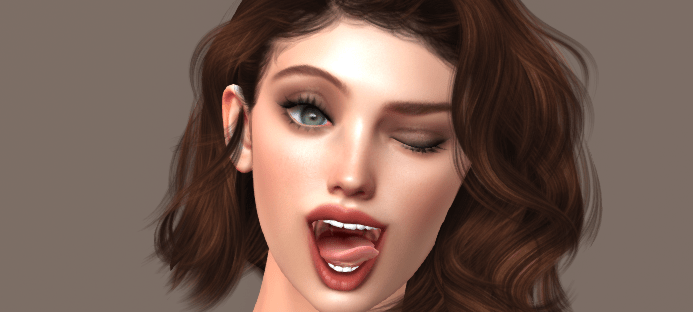

Do animations in SL always seem like a mystery? Why do some work, some don’t, and some you can’t get rid of?
Today I am going to tackle one of the most common issues I see in the Lelutka help channel on Discord. Rogue facial animations you can’t get rid of, or Lelutka animations appearing to not work. First, let’s understand a bit how animations in SL work in general. I am going to try to keep this simple, so please excuse some things not being perfectly technical.
Understanding How Animations in SL Work
Your avatar has a skeleton with different bones. These are what are moved to create animations. Unlike your real skeleton, these bones can be anywhere in the avatar’s body. For example, you have bones to animate the avatar’s eyes, but in real life there is no “eye bones”. Any single bone can only play one animation at a time. However, there can be multiple animations running at once. You’re just not necessarily seeing them all.
Animations can come from any object, or from gestures or experiences. Furniture, pose stands, dance balls, holdable weapons, AOs, body attachments, even clothing. Where you see an animation playing is not always where the animation comes from. Think of it this way. If you have a mesh body and your avatar sits on a piece of furniture you will see the mesh body animate into a sitting position. When you get up, the sit animation (usually) stops. The animation is being seen on your body, but it’s coming from the couch. The furniture has animations and is scripted to animate when your avatar uses it.
To add to the complexity of all of this, animations also have priorities. When an animation is uploaded, the creator decides what priority it will be, from 0 to 6. When a bone is playing more than one animation, the one with the highest priority wins. If multiple animations are playing but have the same priority, the one that was last initiated will be seen. This means you can be running a priority 1 animation, but wont see it if a priority 2 animation is overriding it. This is useful for things like if your avatar is wearing an AO, but you want a sitting animation to play when you sit without having to turn off your AO. If the sit animation is a higher priority, it will play. When you hope off the couch the animation stops and your lower priority AO comes back. When it’s not helpful is if you want to see a lower priority animation but some other higher priority animation is playing and you don’t know where it’s coming from. This is the most common reason for people to have issues with their facial animations, but we’re going to walk through several common animations issues along the way to rule out everything we can think of.
I am speaking specifically about Lelutka facial animations here, but the basic principles are the same.
Troubleshooting Your Issue
In order to properly troubleshoot your issue PLEASE do all the steps given, even the ones you think are not the problem.
Often times the things people assume are not the issue end up being the cause in the long run, so save yourself the time and headache and go through each possibility so you’re not pulling your hair out an hour from now.
If you are seeing an animation you want stopped
Make sure you have first turned off all animations in the Animations menu in the Lelutka HUD. It’s the button that looks like a play button. Every single animation option in each section of the menu. This is very important, be sure they are ALL off. Then do a skeleton and animations reset. In Firestorm, right click your avatar. Go to appearance > reset > skel & anim. If the animation is still playing, that means what you’re seeing is not a Lelutka animation. Skip to the section “Another higher priority animation is playing and you don’t know what its from” near the bottom of the page.
The animations menu button is highlighted in red here ———————->
Depending on what version of the head you are using the HUD may looks slightly different.
If you cannot get a Lelutka animation to play, please follow through all the steps below, one by one.
If you are unsure how to find a menu item in your viewer you can consult a viewer help group in SL, such as the in-world group for Firestorm. Do a search in groups for “Firestorm” and look for “Firestorm Support”. If you’re using a particularly niche viewer, you may want to switch to something more stable and widely used (like Firestorm) to trouble shoot as sometimes these viewers can be part of the problem or particularly difficult to work with for troubleshooting.

You removed scripts and now animations don’t work
If you cannot get animations from the Lelutka HUD to work at all, and you’ve ever removed the scripts from the head, then that would be why. The HUD no longer functions on heads that have the scripts removed. To use the HUD again you will need a fresh copy of the head.
You’re in an area where scripts are disabled
Similar to above, with scripts disabled the HUD cannot animate the head. In Firestorm there are icons that are shown next to the name of the location you are in, at the very top of the screen. An icon that looks like a page and has a red X means scripts are disabled. If you’re not sure what to look for go somewhere like your own rental or a sandbox where you know scripts are not going to be turned off.
Some other HUD is blocking the Lelutka HUD
Many HUDs can have large transparent sections that don’t appear to be covering other HUDs, but can be. The Legacy HUD is rather notorious for this, as even when minimized it takes up a large section of the screen and will block other items from being used. If some or all buttons in the Lelutka HUD are not responding at all, remove all other HUDs to rule this one out.
You need a relog, or to refresh attachments
Sometimes if a HUD is not responding at all you can fix it with a relog or by refreshing attachments. Go to “Avatar” in the upper left of the screen, then “Avatar Health”, then “Refresh Attachments.” If that doesn’t do the job, try a relog.
Lag 
It’s a thing. If you’re in the Lelutka store, for example, it is often very busy and all those avatars can lag you down causing delays in using scripted objects. Try going somewhere quieter, like your private rental or a lower traffic sandbox area.
You borked the HUD by manually moving it
The Lelutka HUD can be broken if moved on the screen by using the build menu. If you’ve done this and the HUD doesn’t appear to be working please get a redelivery and try a fresh HUD.
Your avatar skeleton just needs a reset
Sometimes your skeleton just needs a little smack to get back into place. This is common for things like the eyes being moved out of place. Since the skeleton and animations are so closely related, it’s always good to start off troubleshooting animations issues with a reset. All it does it make sure the bones are all where they should be, it won’t break anything you’re using. In Firestorm, right click your avatar. Go to appearance > reset > skel & anim.
You need to revoke permissions
Sometimes if an animation is hanging around from something like a dance ball you can get it to stop by revoking permissions. In Firestorm, go to the “Avatar” menu in the upper left of your screen. Go to “Avatar Health” and then “Stop Avatar Animations and Revoke Permissions”. Note that this does not work for animations playing on items you’re currently using, so if you’re still seeing that rogue animation or it comes back after a few seconds, you can probably guess what we will be doing next.
Another higher priority animation is playing and you don’t know what its from
This if by far the most common reason a person is seeing facial animations they don’t want to have playing and cannot seem to get rid of them. The most common source of rogue facial animations that we see is the Sessions V and P, which are scripted mesh genitalia. The facial animations in these objects can be activated by, for example, sitting on adult furniture. Sadly, the animation doesn’t turn off when you get off the furniture, so your mouth may be going crazy licking things that are no longer there. If you wear this item please take if off and do a skeleton reset to rule it out as the culprit. If the animation stops, then you know that’s where it’s coming from. Consult your help info from that product to figure out how to turn active animations off.
If you don’t use the V or P, or any similar objects which are likely culprits, another common one is the AO. Some AOs come with facial animations which may be higher priority than the animations you want to be seeing. Please remove it to rule it out and if that does the trick, you know it’s the AO that is blocking other animations or playing an animation you didn’t want. Many of these products have the option to turn the facial animations off, so consult with the help info for your AO to ensure any facial animations are off so you can still use your AO.
Lastly, it could be something else you’re wearing. Because any object can have animations that means any of your attachments or items you’re using could be playing a facial animations. Get off all furniture, do not use a pose stand, don’t use anything but the pose button built into the Lelutka HUD. Turn off all the animations in the Lelutka HUD. We want to rule out all animations to troubleshoot where the issue is coming from. Next, remove all objects but your head and body items. Everything. Yes, everything. We’ve seen the most mundane of items that ended up being the culprit, so save yourself the headache and take off everything. You don’t need to worry about things like BOM layers, as those do not have animations. Only attachments. In Firestorm they are the items with the little yellow boxes next to them. HUDs, clothing, slappers, spankers, chimeras, jewelry, hair, accessories, holdable items, etc. All of it.
Next, do a skeleton reset again. In Firestorm, right click your avatar. Go to appearance > reset > skel & anim. If the animation stops, that means one of the items you took off was the culprit. You can now begin putting things back on, one by one, and when you see that animation you don’t want pop back up, you know it’s one of the items you just added back on.
If you remove everything and do a skeleton reset and there is still an animation playing, that leaves gestures and experiences. For gestures, in Firestorm press Ctrl + G to bring up the Gestures window. Using the little gear button in the bottom left, deactivate everything until the animation stops. People often have lots of gestures hanging around that they never turned off, so this is a good time to audit everything and start fresh.
If all the gestures are off and you’re still seeing something, sometimes it comes from an Experience. Go to the “Avatar” menu in the upper left, then “Experiences”. Click each one and then the button “Forget”. Some you will not be able to forget, that’s ok. Just remove as many as you can. You should audit these and remove things on a regular bases as well, so may as well clear everything out now. If there is an experience you do want to use, you can reactivate it later when you need to use it again, so don’t worry about that.
By now you should have stopped that pesky animation. Going through ALL of these steps handles 99% of rogue animations that we have seen. In some rare cases it can also just be SL bugging out a bit, and a few relogs or moving to another sim resolves it, but usually it’s one of the above that is the problem so be sure you have done each one. Every time I have seen someone unable to resolve animations issues after going through these steps it is because they either skipped one, did it incorrectly, or just needed a relog or to go somewhere less laggy.
 CAZIMI